How to Add the Werk24 MCP Server to n8n
We showed recently how to add Werk24 as an MCP connector in Claude. Same server, same tools — but n8n is where it stops being a conversation and becomes a process: an RFQ arrives, the drawing gets read, the data lands in your quoting sheet.
Setup is five steps and no API code. Here is the whole thing:
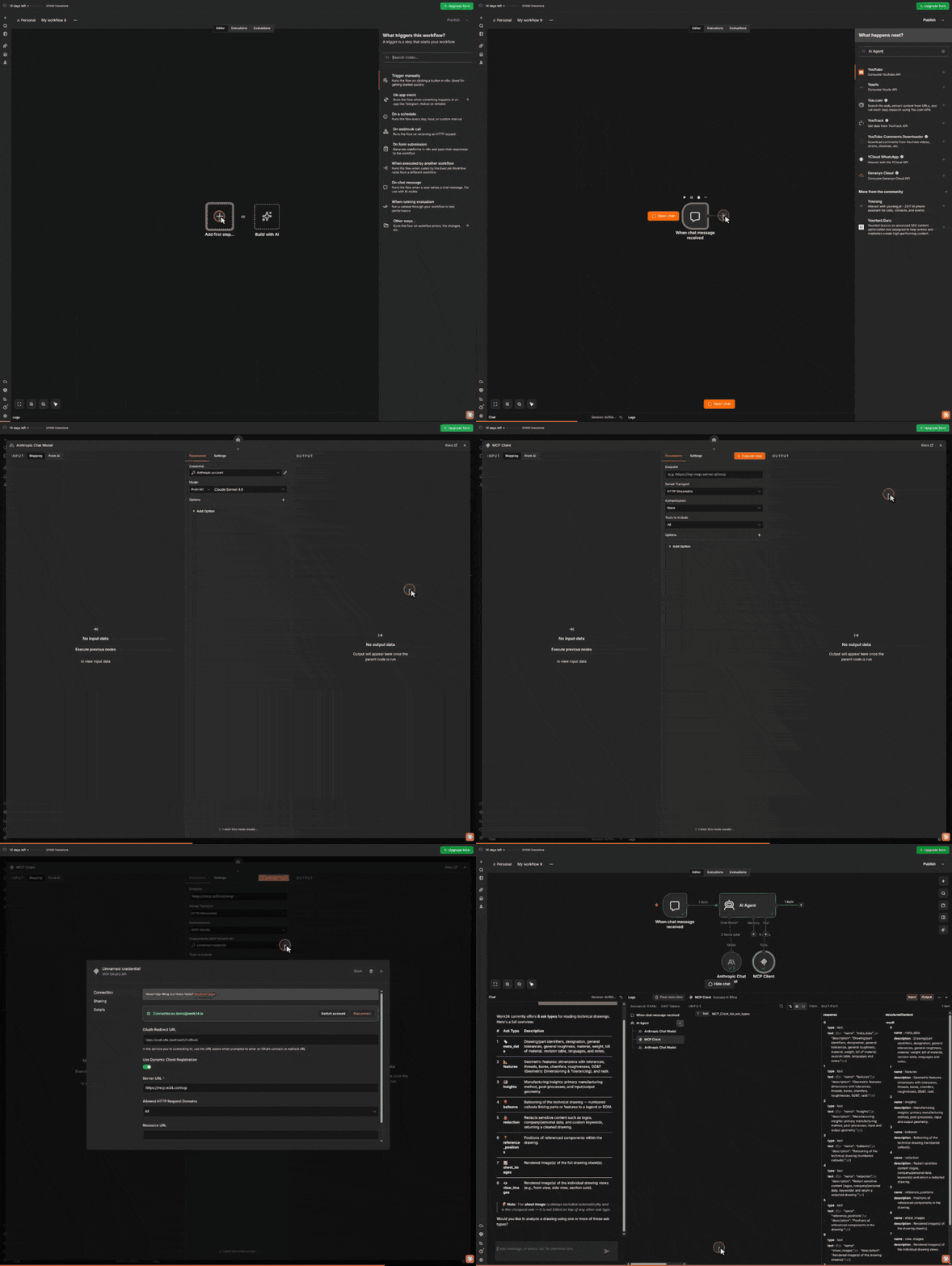
What you need: an n8n instance with the MCP Client node (n8n 1.88+), a Werk24 account with a plan and a payment method, and an API key for whichever chat model you want to drive the agent.
Step 1: Add the trigger
New workflow → Add first step → On chat message. You get a When chat message received node and a chat panel inside the editor, which is the quickest way to watch the agent work. Swap it later for a webhook, an email trigger, or a schedule.
Step 2: Add an AI Agent
Click the + after the trigger, search for AI Agent, add it. The node appears with three ports underneath: Chat Model*, Memory and Tool.
Step 3: Give it a model
Click + under Chat Model and pick one — the walkthrough uses Anthropic Chat Model. The drawing reading happens on Werk24's side, so any capable model will do.
Step 4: Add the MCP Client
Click + under Tool and add MCP Client. Three fields:
| Field | Value |
|---|---|
| Endpoint | https://mcp.w24.co/mcp |
| Server Transport | HTTP Streamable |
| Authentication | MCP OAuth2 |
Then open the credential. Leave Use Dynamic Client Registration on, put https://mcp.w24.co/mcp in Server URL, and click Connect — n8n registers itself with us automatically, so there is nothing to paste. Sign in at Werk24 and the credential goes green: Connected as you@yourcompany.com.
Two things worth knowing. Finish the sign-in within five minutes — n8n's callback expires on that window, and a slow login fails after the authorization has already succeeded, which makes the error confusing. And the sign-in is interactive exactly once: from then on n8n refreshes its own token, so a workflow that runs at least monthly never asks again.
If you need it fully headless, run werk24-mcp yourself — self-hosted it takes a static API token via W24TECHREAD_AUTH_TOKEN and Header Auth. The hosted endpoint is OAuth-only; an API key in a header won't authenticate there.
Step 5: Ask it something
Open the chat panel and start with the question the walkthrough ends on:
Which ask types does Werk24 offer?
The agent calls list_ask_types and comes back with the catalogue — no page spent, and proof the connection works end to end:
| Ask | Returns |
|---|---|
meta_data | Drawing and part identifiers, designation, general tolerances and roughness, material, weight, bill of material, revision table, languages, notes. |
features | Dimensions with tolerances, threads, bores, chamfers, roughnesses, GD&T, radii. |
insights | Primary manufacturing method, post-processes, input and output geometry. |
balloons | Numbered callouts linking parts or features to a legend or BOM. |
redaction | A cleaned drawing with logos, company and personal data or custom keywords removed. |
reference_positions | Positions of referenced components. |
sheet_images / view_images | Rendered images of the full sheets, or of the individual views. |
The sheet image comes back automatically and isn't billed on top of another ask.
Now the real thing:
Read the drawing at <url>. Give me the drawing ID, the material, and every
dimension toleranced tighter than ±0.05 mm.
The agent picks the asks it needs, calls read_drawing, and answers from the structured result — which is also sitting in the node output, ready to route into your ERP, your quoting sheet, or an IF node that flags anything your shop can't hold.
One practical note on the URL. n8n is a server, not a client with access to your files, so it hands us a link and we fetch the drawing. Use a presigned, time-limited URL — S3, GCS, whatever your storage already does — pointing directly at the file rather than at a viewer page. Expect 5–20 seconds per page.
If something doesn't work
- Empty tool list — check the endpoint ends in
/mcpand the transport is HTTP Streamable, not SSE. - CSRF or state error after signing in — you took longer than five minutes. Click Connect again.
403 onboarding_required— the account needs a plan and a payment method in the console.- The agent answers without reading the drawing — it couldn't fetch the URL. Check the link resolves to the file from outside your network.
Want to see the extraction quality first? Drop a drawing into the demo — no sign-up. The full ask reference lives in the documentation, and if you need an output schema shaped to your data model, talk to us.