Add Werk24 as an MCP Connector in Claude
You can already drop a technical drawing into Claude and ask what the tolerances are. You will get an answer. What you will not get is a way to tell whether it is right — the model is reading a picture, and a GD&T frame rendered at 200 DPI is a hard picture to read.
Werk24's MCP connector changes what sits underneath that answer. Instead of interpreting pixels, Claude calls Werk24's extraction engine and gets structured engineering data back: a feature control frame as an object with its characteristic, zone and datum references; a tolerance as {nominal: 0.05, plus: 0.01, minus: -0.01, unit: 'mm'}; a material as a normalized designation rather than whatever string happened to be printed in the title block. Claude then answers your question from that.
Setup takes about two minutes and lives entirely in Claude's settings. One thing to know going in: how you get a drawing to the server differs depending on whether you run Claude locally or in a browser. More on that once the connector is in place.
What MCP is, briefly
The Model Context Protocol is an open standard for connecting AI assistants to outside tools and data. A remote MCP server publishes a set of tools; an MCP-capable client discovers them and calls them mid-conversation, on your behalf, with your authorization.
The practical consequence: no SDK, no API key to manage, no glue code. You connect once in settings, and the capability is there in every conversation afterwards.
Werk24 now runs one of these servers at https://mcp.w24.co/mcp.
What you'll need: a Werk24 account — or the willingness to create one — and access to Claude's settings.
Here is the whole flow, start to finish:
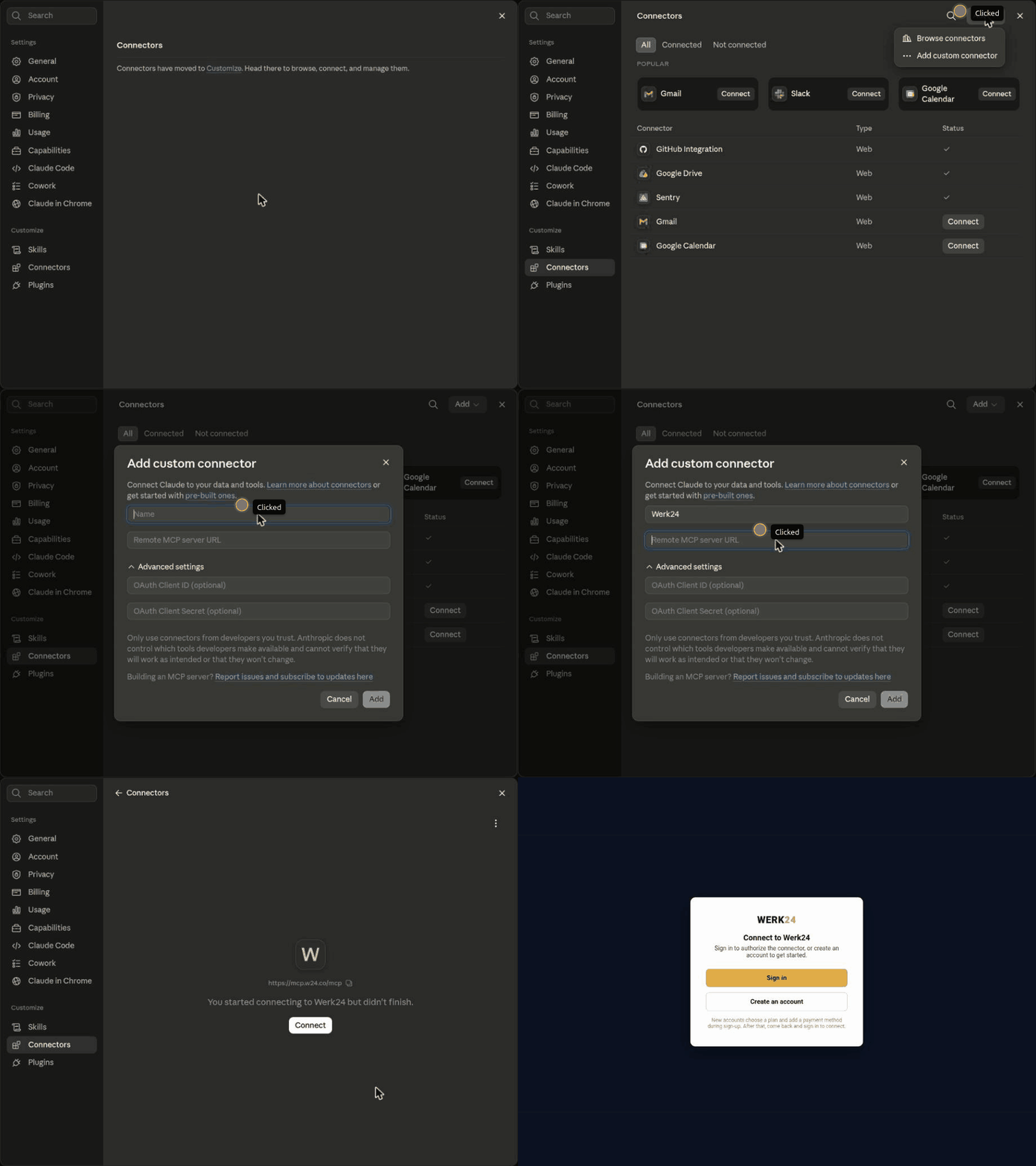
The written steps follow, if you'd rather read than watch.
Step 1: Open the Connectors settings
In Claude, go to Settings and find Connectors under the Customize section of the left-hand menu. This page lists every integration attached to your account and its current connection status.
Step 2: Start a custom connector
Click the Add dropdown near the top right and choose Add custom connector. Werk24 isn't in the pre-built list yet, so the custom path is how you register it.
Step 3: Fill in the details
| Field | Value |
|---|---|
| Name | Werk24 |
| Remote MCP server URL | https://mcp.w24.co/mcp |
Leave the optional Advanced settings — OAuth client ID and secret — blank. Werk24 handles authorization through its own sign-in flow.
Step 4: Save and connect
Click Add. Claude registers the connector and opens its detail page, showing the Werk24 icon, the server URL, and a Connect button. Click Connect.
Step 5: Authorize
You're redirected to Werk24's authorization page. Sign in with an existing account, or create one. Authorize access and you're returned to Claude with the connector marked active.
That's the whole setup.
Handing it a drawing
One wrinkle decides how you'll actually work day to day, so it's worth knowing before you start: the drawing has to reach Werk24's server, and how it gets there depends on which Claude you're running.
A client with access to your filesystem — Claude Desktop, Claude Code, Cowork — reads the file and passes it straight through. Point at a path, ask your question, done. Nothing else to arrange.
Hosted Claude — claude.ai in a browser or on your phone — can't do that. A file you attach to the conversation lives in Anthropic's infrastructure, and our server has no route to it. Attaching a drawing to the chat does not make it available to the connector. Instead you give Claude a URL, and it hands that to Werk24 to fetch.
The right shape for that URL is a presigned, time-limited link — an S3 or GCS presigned URL, or the equivalent from whatever storage you already use. The credential rides in the URL itself and expires on a schedule you set, so reading a drawing doesn't mean publishing it. A permanently public link works too, and is a bad habit to get into with proprietary geometry.
So: if you're evaluating the connector and just want to watch it work, a local client is the shorter path — there's no storage to set up. If you're wiring it into how a team works, the URL route is the one that scales, and you probably have presigned links in your stack already.
What comes back
The connector exposes the same extraction that runs behind our REST API, so what you see in chat matches what your pipeline would receive:
- Dimensions — linear, angular and radial, with their tolerances
- GD&T — position, flatness, perpendicularity and the rest, with datum references intact
- Tolerances — limit dimensions, ± tolerances, fits (H7/g6), IT grades, ISO 2768 general tolerances
- Threads — metric, UNC, UNF, Whitworth, with pitch, class and depth
- Materials — normalized to their standard (
20MnCr5→ DIN EN 10084) - Surface finish — Ra, Rz and N-grades per ISO 1302
- Title block — part number, revision, scale, weight, projection method
- Notes — heat treatment, coating, manufacturing instructions
ISO and ASME/ANSI conventions are both handled, and projection method is detected rather than assumed.
What to ask it
Once the drawing is in reach — by path or by URL — the questions worth asking are the ones you'd otherwise answer by squinting at a sheet for twenty minutes:
- "Anything on this part tighter than IT7, any thread below M3, or any material we don't stock?" — first-pass RFQ triage
- "Pull the title block into a table: drawing number, revision, scale, material, weight." — ERP data entry without the typing
- "List every GD&T frame with its datums, and flag any that reference a datum the drawing never defines." — a consistency check that is genuinely tedious by hand
- "Which manufacturing processes does this geometry and finish imply?"
- "Summarize this drawing in English." — for sheets annotated in German, Dutch, French, Spanish, Italian or Japanese
Because it's a conversation, the follow-up is free. Ask for the tolerance list, then ask which of those are on the mating face, then ask for it as CSV.
What it accepts
- Formats — CAD-generated PDFs, and scans as TIFF, JPEG, JP2, PNG or BMP. Multi-page PDFs are handled page by page. A URL has to resolve to one of these directly, not to a viewer page that happens to display one.
- Sheet size — up to A1 (594 × 841 mm).
- Resolution — ≥ 200 DPI minimum, 300–400 DPI recommended. Don't downscale a large sheet to make it fit; it only shrinks the symbols.
- Speed — 5–20 seconds per page. A pause before Claude answers is the extraction running, not the model stalling.
Accuracy runs above 95% on standard drawings. For values that carry real cost — a critical fit, a material callout that drives procurement — spot-check against the sheet before you commit.
Where the API still wins
MCP is for the conversational end of the work: exploring a drawing, triaging a handful of RFQs, working out which questions are worth asking before anyone writes code.
For volume, scheduled runs, and writing results into ERP, PLM or MES, you still want the REST API and Python SDK — the API Console gets you a key, usage dashboards, and a ready-to-paste prompt for your coding agent. Both paths call the same engine, so anything you prove out in chat transfers directly to the integration.
Where your drawings go
The drawing is processed by Werk24's extraction service, the same one behind the API — either from the file your client sent, or fetched once from the URL you supplied. Processing happens in the EU (Frankfurt) or the US, by your choice; data is encrypted in transit and at rest (AES-256); retention is configurable from immediate deletion through three months, with zero retention available on Enterprise. Customer drawings are never used to train shared models.
Beyond Claude
MCP is a standard, not a Claude feature. Any MCP-capable client can point at the same https://mcp.w24.co/mcp endpoint and get the same tools — the setup path differs, the server doesn't. The file-versus-URL split above follows the same line wherever you connect from: a client that can read your filesystem sends the drawing, a hosted one sends a link to it.
For the full extraction specification, see the Werk24 documentation. And if the connector doesn't behave the way this guide describes, send us a sample drawing — redacted if needed — and we'll take a look.